I have been crawling through attics, fishing cable behind drywall, and standing in strangers’ hallways staring at a phone screen for a long time now. If there is one thing this work has taught me, it is that most people who call me about bad WiFi do not actually need a new router. They need someone to look at where the router is sitting, how it is configured, and what is going on around it. So if you are wondering how to improve WiFi signal in your house without heading to the electronics store, you are asking the right question, and the answer is usually cheaper than you think.
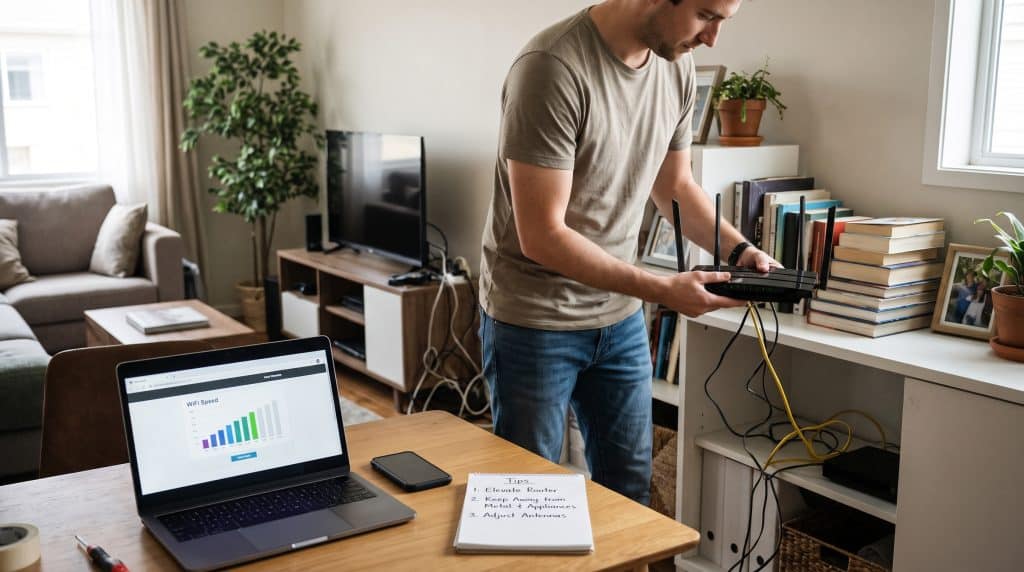
Last month, I walked into a two-story home where the family was ready to spend a few hundred dollars on a mesh kit. Their router was inside a metal media cabinet, on the floor, behind a television, next to a fish tank. I moved it about eight feet, onto a bookshelf, out in the open. The upstairs bedroom went from one bar to three. The total cost of that visit to them was my time and a longer power cable.
That story is not unusual. In fact, it is the norm. What follows is the same process I run on almost every residential call, written so you can do it yourself.
Start With the Honest Truth About Your Router
Routers get blamed for a lot of things they did not do. A router is a radio. It sends out a signal, and that signal gets weaker the farther it travels and the more stuff it has to pass through. Walls, floors, appliances, water, metal, mirrors, and even your neighbors’ networks all take a bite out of it.
Most routers that internet providers have handed out in the last several years are perfectly capable of covering an average apartment or a modest single-family home. What they are not capable of is fighting physics when they are tucked in a closet at one end of the house. Before you replace anything, you want to know whether the weak link is the router, the placement, the settings, the device in your hand, or the internet service itself. That is where testing comes in.
Test Before You Try to Improve WiFi Signal
I never touch a customer’s equipment before I measure, and you should not either. Changes only mean something if you have a baseline to compare against, and learning how to improve WiFi signal starts with knowing exactly where it is weak.
Here is how I do it in plain terms. First, plug a laptop directly into the router with an Ethernet cable and run a speed test. That number is roughly what your internet service is delivering to the house. If it is far below what you pay for, the problem is upstream, and no amount of router tweaking will fix it. Call your provider.
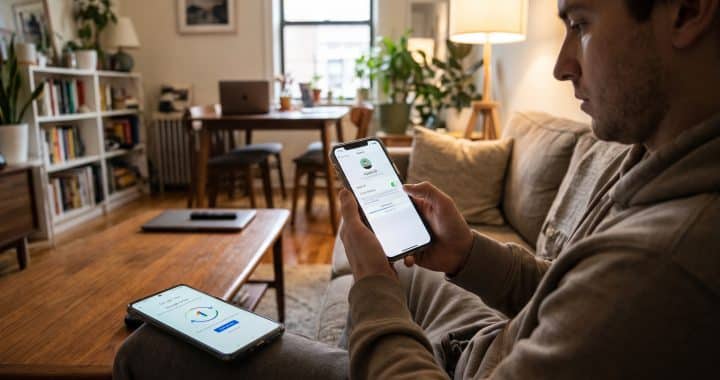
Next, unplug the cable and run the same test on WiFi while standing right next to the router. Then walk the house. Run a test in the kitchen, the bedrooms, the home office, the back porch, wherever you actually use the internet. The FCC’s home network guidance suggests checking your speeds for exactly this reason. Write the numbers down, and note the time of day too, because evening tests in busy neighborhoods often come in lower.
Use a WiFi Analyzer App for a Clearer Picture
If you want to go a step further, install a free WiFi analyzer app on your phone or laptop. These show signal strength in dBm (a number like -50 or -70, where closer to zero is better) along with which channels nearby networks are using. In my experience, anything around -67 or stronger is comfortable for video calls and streaming. Once you drift past -75, things start to stutter.
Now you have a map. You know where the signal is good, where it fades, and where it dies. Everything else in this guide is about moving those weak numbers up.
How to Improve WiFi Signal by Moving the Router
If I could only give one piece of advice on how to improve WiFi signal, this would be it. Placement fixes more homes than any setting or gadget.
Think of your router’s signal like light from a lamp with no shade. You would not put a lamp on the floor inside a cabinet at the far end of the house and expect the bedrooms to be bright. Same idea here.
Go Central and Get It Off the Floor
Put the router as close to the middle of the area you want to cover as you reasonably can. If your internet line comes into the house at one corner, that is where installers often leave the router, simply because it is convenient. Convenient for the installer is not the same as good for you. A longer Ethernet run from the modem to a router in a central spot is often the single best change you can make.
Height matters just as much. Signal tends to spread out and slightly downward from most home routers. A shelf at chest height or higher usually beats the floor by a wide margin. In a two-story home, the top of a bookshelf on the first floor or a hallway table on the second floor near the stairs often splits the difference nicely.
Keep It in the Open and Away From Interference
Cabinets, closets, and especially metal enclosures choke the signal. So do the backs of big televisions, which are basically panels of metal and electronics. If you are hiding the router because it is ugly, I understand, but the price of hiding it is coverage.
Large mirrors, metal filing cabinets, refrigerators, aquariums, and water heaters are all signal killers. Water absorbs WiFi surprisingly well, which is why a fish tank or even a bathroom full of plumbing between you and the router hurts. Likewise, brick, concrete, plaster with metal lath, and tile all block more than standard drywall.
Mind the microwave as well. Microwave ovens, older cordless phones, baby monitors, and some Bluetooth gear all live in or near the 2.4 GHz range. A router sitting next to the microwave will show a dip every time someone reheats coffee. I have watched it happen live on an analyzer more times than I can count.
After you move it, walk the house and run your tests again. Compare against your notes. You may need to try two or three spots before you land on the best one. That is normal. Professionals do the same thing; we just have better instruments.
Aim the Antennas to Improve WiFi Signal Between Floors
If your router has external antennas, they are not decorations. Each one sends out signal in a shape roughly like a donut, strongest out to the sides and weakest straight off the tip.
So when all the antennas point straight up, you get great horizontal coverage on the same floor and weaker coverage up and down. That is fine for a single-story ranch. For a multilevel home, however, I usually tilt one antenna to the side, roughly horizontal, so part of the signal pattern reaches the floor above or below. If you have three or four antennas, set them at a mix of angles rather than all in a neat row.
Devices also pick up signal best when their internal antennas line up with the router’s. Since phones and laptops get held every which way, a mix of angles on the router side gives you better odds overall.
Routers with hidden internal antennas are usually designed to sit upright on a table. Laying one on its side or mounting it upside down can change its coverage pattern in ways the manufacturer did not intend. Check the manual or the manufacturer’s support page before getting creative with mounting.
How to Improve WiFi Signal With the Right Band
Almost every router from the last decade is dual band, meaning it broadcasts on both 2.4 GHz and 5 GHz. Newer models may add 6 GHz too. Understanding the tradeoff between them is a huge part of how to improve WiFi signal where it matters.
The 2.4 GHz band travels farther and gets through walls and floors better. Its catch is that it is slower and very crowded, since your neighbors’ routers, your microwave, your baby monitor, and dozens of smart home gadgets all share that space. On the other side, 5 GHz is faster and much less congested, but it does not travel as far and loses more strength through walls. Routers that support 6 GHz offer something faster and quieter still, with even shorter reach.
What does that mean in practice? Devices near the router that need speed, like your smart TV, game console, and work laptop, should be on 5 GHz. Devices far away, or simple gadgets like smart plugs, thermostats, and doorbells, are often happier on 2.4 GHz.
Band Steering or Separate Network Names
Many routers handle this automatically with a feature called band steering, where both bands share one network name and the router nudges each device to the best band. When it works well, leave it alone. When it does not, and I see this on cheaper or older routers, I split the bands into two separate network names, something like HomeNet and HomeNet5G. Then you choose which devices go where. It is a little less elegant, but it puts you in control.
One more tip from the field: if a device in a far bedroom keeps dropping, check which band it is on. Very often it has latched onto 5 GHz at the edge of its range and keeps losing it. Forcing that device onto 2.4 GHz can make it rock solid, even if the top speed is lower.
Pick a Quieter Channel to Improve WiFi Signal
Each band is divided into channels, and if you live in an apartment building or a dense neighborhood, many of those channels are packed with your neighbors’ networks. When your router shares a channel with five others, everybody takes turns talking, and everybody slows down.
On the 2.4 GHz band, stick to channels 1, 6, or 11. Those are the only three that do not overlap each other in most of the world, as the Nokia WiFi Help Center’s interference guide also notes. Choosing channel 3 or 8 does not escape the crowd; it actually overlaps two crowds at once. Open your analyzer app, see which of those three has the fewest strong networks on it, and set your router to that one. Also, set the 2.4 GHz channel width to 20 MHz. Wider settings sound faster on paper but tend to cause more interference in busy areas.
On the 5 GHz band, there are many more channels to work with, so congestion is less of a problem. Most routers do a decent job picking automatically. If you are in a busy building and the analyzer shows heavy use on a particular channel, try setting one manually and retest.
Where to Find These Settings
You change channels in the router’s admin page, usually reached by typing an address like 192.168.0.1 or 192.168.1.1 into a browser, or through the provider’s or manufacturer’s app. The login details are often printed on a sticker on the router itself. If you have never logged in before, now is a good time to change the default admin password, using the same principles you would for creating a strong password.
Update the Firmware
Firmware is the software that runs your router. Manufacturers release updates that fix bugs, patch security holes, and sometimes improve performance and stability. I regularly find routers in homes still running the firmware they shipped with years ago.
Check the admin page or app for an update option. Many newer routers can update themselves automatically, so turn that on if it is available. If your router came from your internet provider, they typically push updates for you, but it does not hurt to confirm the router is a model they still support.
Reboot on Purpose
As for rebooting, it really does help. Routers are small computers, and small computers develop memory leaks and stuck processes over weeks of uptime. A restart clears that out. Unplug the modem and router, wait about thirty seconds, plug the modem back in, wait until its lights settle, then plug the router back in. Some routers let you schedule an automatic reboot once a week in the middle of the night. I set that up for a lot of customers who were rebooting manually every few days without realizing it.
If you are rebooting constantly just to keep things working, though, take that as a warning sign. Something is wrong, whether it is overheating, failing hardware, or an outdated unit that can no longer keep up.
Clear Out Freeloaders and Bandwidth Hogs
Your WiFi signal can be strong and still feel slow if too many things are pulling from it at once. Every connected device takes a share of airtime, even when it is sitting idle and checking in.
Log into the router and look at the list of connected devices. In a typical home, I find old phones nobody uses, a tablet in a drawer, a smart speaker from three moves ago, and occasionally a device nobody in the house recognizes. That last one is a security problem as well as a speed problem.
Make sure your network uses WPA2 or, if all your devices support it, WPA3 encryption, with a strong password. If you have been using the same password for years and have shared it with every guest, change it. Use the guest network feature for visitors so they stay off your main network. And be cautious with any email claiming to be from your provider and asking you to “verify” router or account details; knowing how to spot phishing emails protects the network you just secured.
The FCC has also recommended practical habits like scheduling heavy use, such as big game downloads, for times when nobody is on a work call, and turning off WiFi on devices that are not being used. If your router has a quality of service feature (often labeled QoS), you can tell it to prioritize video calls or a work computer over background downloads. It will not create more signal, but it decides who gets served first when things are busy.
Wire Stationary Devices to Improve WiFi Signal for Everything Else
Here is something people rarely want to hear: the best WiFi improvement is often using less WiFi. It sounds backwards, but it is one of the most reliable answers I give when someone asks how to improve WiFi signal for the devices that truly need it.
Your smart TV, game console, desktop computer, and streaming box sit in one spot all day. If any of them are within reach of the router, connect them with an Ethernet cable. A wired connection is faster and more stable than wireless, and every device you move off WiFi frees up airtime for the phones and laptops that actually need to roam.
Ethernet cable is cheap. Flat cables can run under rugs and along baseboards without looking terrible. I have finished jobs where the only “upgrade” was three patch cables and some adhesive clips, and the household’s WiFi complaints stopped, simply because the TV and console stopped hogging the wireless.
If your home already has Ethernet jacks in the walls, which is common in houses built or renovated in the last couple of decades, find out where they go. Often they lead to a small panel in a closet or basement that nobody ever connected. That is free infrastructure sitting unused.
Give That Old Router in the Closet a Second Job
You told yourself you were not buying a new router, and you do not have to. But if you have upgraded before or switched internet providers, there is a good chance an older router is sitting in a box somewhere.
Most routers can be set up as a wired access point. Here is the idea: you run an Ethernet cable from your main router to the old one, placed in the part of the house with weak coverage. Next, you configure the old router to stop acting as a router (usually by turning off its DHCP server and giving it a fixed address on your network) and simply broadcast WiFi. Give it the same network name and password as your main router, and many devices will move between them on their own.
Some routers have an “access point mode” or “bridge mode” switch that handles most of this for you. Others need a few manual settings. Check the manufacturer’s support page for your exact model.
A wired access point beats a wireless extender every time, because it does not have to spend half its airtime relaying signal back to the main router. I have used this trick in garages, home offices above detached garages, and basements with concrete walls. It costs you a length of cable and an hour of setup.
Do Not Forget the Device in Your Hand
Sometimes the router is fine and the problem is on the other end. An older laptop may only support older WiFi standards, which caps its speed no matter how strong the signal. A device with outdated network drivers may struggle to hold a connection. Even a thick metal phone case or an aluminum laptop stand can weaken reception slightly.
Keep your operating systems and drivers updated. On a laptop that keeps dropping, “forget” the network and reconnect fresh. If one particular device is slow while everything else in the same room is fast, the device is your suspect, not the router.
For older desktops, a small USB WiFi adapter that supports current standards can be an inexpensive fix that brings an aging machine up to speed. That is not a router purchase, and it often costs less than dinner out.
A Simple Order of Operations for How to Improve WiFi Signal
When customers ask me how to improve WiFi signal in the fewest steps, I give them this sequence. Work through it in order and retest after each step so you know what actually helped.
- Test wired speed at the router, then WiFi speed in every room, and write it all down.
- Move the router to a central, elevated, open spot away from metal, water, and microwaves.
- Adjust the antennas to a mix of vertical and horizontal angles.
- Update the firmware and restart the modem and router.
- Set 2.4 GHz to channel 1, 6, or 11, whichever is least crowded, at 20 MHz width.
- Put nearby, demanding devices on 5 GHz and distant, simple devices on 2.4 GHz.
- Remove unknown and unused devices, and secure the network with a strong password.
- Connect stationary devices with Ethernet.
- Turn an old router into a wired access point for the weakest area.
Most homes I visit are in good shape by step five or six.
When It Really Is Time to Upgrade
I would not be giving you an honest answer if I said a new router is never the solution. Sometimes it is.
A router that only supports the 2.4 GHz band is well past its prime. When your internet plan is faster than your router’s WiFi can deliver, which you will see when wired speeds are high but even close-range wireless speeds are capped well below them, the hardware is the bottleneck. Heat is another giveaway: if the unit runs hot to the touch, needs daily reboots, or has not received a firmware update in years, it is time.
Very large homes, homes with thick masonry or plaster walls, and homes spread across three or more levels may simply need more than one source of signal. In those cases, a mesh system or a few wired access points is the right call. If you do end up shopping, it helps to create a budget first so a mesh kit does not quietly turn into a much bigger purchase.
But get there by elimination, not by assumption. Once you have worked through everything above, you will know exactly what problem you are paying to solve, and you will make a better purchase because of it.
The Bottom Line on How to Improve WiFi Signal
Figuring out how to improve WiFi signal at home is mostly about removing obstacles: physical obstacles between the router and you, settings that put you on a crowded channel, devices that hog airtime, and old software that never got updated. None of that requires new hardware.
Measure first. Move the router second. Then work through the settings one change at a time and retest after each. I have seen this approach turn dead zones into usable rooms in homes of every size, and you can do the same with a free afternoon and a bit of patience.
Frequently Asked Questions
What is the fastest way to improve WiFi signal without spending money?
Move your router to a central, elevated, open location away from metal objects, water, and microwave ovens, then restart it. Placement accounts for more weak signal problems than any other single factor. The FCC Home Network Tips page covers several of these free steps.
Does restarting my router actually help?
Yes. A restart clears out memory and stuck processes that build up over weeks of continuous use. Unplug the modem and router, wait about thirty seconds, then power the modem up first and the router second. The CIO broadband troubleshooting guide also recommends firmware updates and equipment checks before deeper changes.
Should I use 2.4 GHz or 5 GHz?
Use 5 GHz for devices close to the router that need speed, like TVs, consoles, and work laptops. For devices farther away or simple smart home gadgets, 2.4 GHz is the better fit. The Nokia WiFi Help Center explains how each band handles interference.
Which WiFi channel is best?
On 2.4 GHz, choose channel 1, 6, or 11, whichever has the fewest nearby networks, because those three do not overlap. On 5 GHz, automatic selection usually works well, though a WiFi analyzer can help you pick manually in crowded buildings. NetSpot’s guide to extending WiFi range shows how placement and neighboring networks affect coverage.
How do I improve WiFi signal upstairs?
Floors, ductwork, plumbing, and carpet all absorb signal, and a router on the ground floor at one end of the house struggles to reach the opposite end of the second floor. Raise the router, move it closer to the center of the home, and tilt one antenna sideways. BGR’s article on router placement discusses why central, elevated spots work best.
How many devices are too many for my WiFi?
There is no single number, but every connected device uses airtime even when idle. Remove unused devices, wire stationary ones with Ethernet, and schedule heavy downloads for off hours. The FCC Household Broadband Guide helps you match your plan to the number of users and activities in your home.
Can an old router help improve WiFi signal in dead zones?
Yes. Set it up as a wired access point in the weakest part of the house, connected by Ethernet to your main router, and give it the same network name and password. It usually performs better than a wireless extender because it does not relay signal over the air.
References
- Federal Communications Commission. Home Network Tips.
- Federal Communications Commission. Household Broadband Guide.
- Google Blog. 5 Tips to Make Your Home Wi-Fi Even Better.
- Nokia WiFi Help Center. WiFi Interference.
- BGR. Your Router Is Probably Sitting in the Wrong Spot.
- NetSpot. How to Extend Wi-Fi Range: A Complete Guide.
- CIO. Your Broadband Isn’t Fast and You’re Furious: Fix-It Tips.
- AARP. Tips to Speed Up Your Internet at Home.