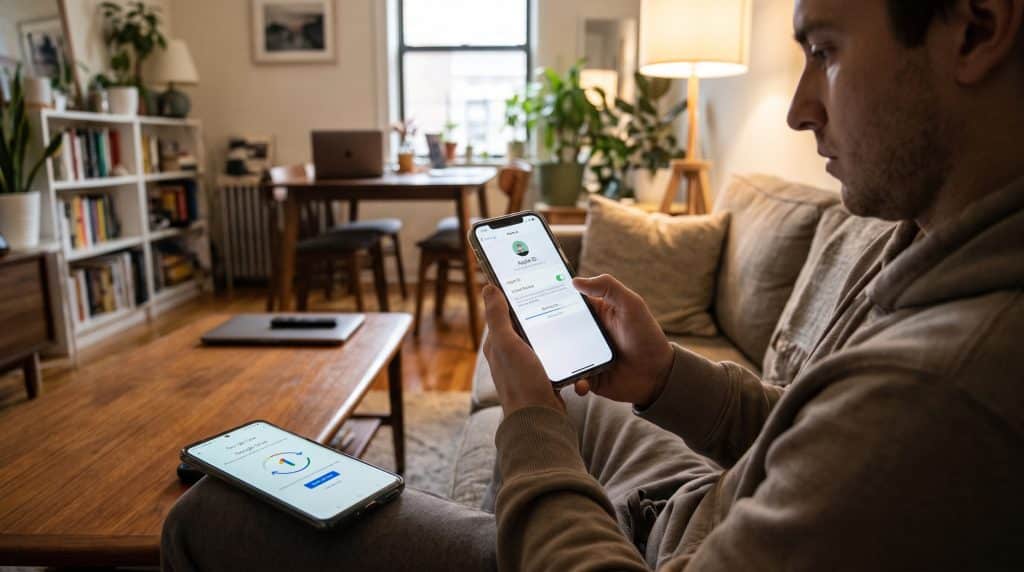
A few weeks ago, a retired schoolteacher sat down at my support desk with a phone that would not get past the boot logo. She had dropped it in a sink the night before. Her first question was not about the repair. It was about her photos, specifically eleven years of pictures of her grandkids. I plugged the phone in, checked her account, and saw that her last backup had finished three years earlier. That conversation was harder than any hardware fix I have ever done, and it is the reason this guide on how to back up your phone exists.
I have worked consumer tech support and help desk jobs for a long time now. If there is one lesson I would pass along to every phone owner, it is this: learn how to back up your phone before you need to. Not after the crack, the theft, or the failed update. Before.
This guide walks through exactly how I set up backups for customers on both iPhone and Android, what those backups actually save, what they quietly leave behind, and how to confirm the whole thing is working. No jargon for the sake of it. Just the steps I use every day.
Why Learning How to Back Up Your Phone Matters More Than You Think
Most people assume their phone is “in the cloud” already. Some of it probably is. Your email lives on a server, and contacts may sync to your Google or Apple account. However, a lot of what makes your phone feel like yours does not sync on its own. Think app settings, home screen layouts, message history, saved WiFi networks, and data inside apps that never bothered to store anything online.
A real backup is a snapshot of all of that, packaged so it can be restored onto a new or repaired phone. When you set up a replacement device and choose to restore from a backup, it should come back looking and behaving close to how your old one did.
When Knowing How to Back Up Your Phone Saves the Day
Here are the situations where I see backups rescue customers:
- Lost or stolen phones. The device is gone, but the data does not have to be.
- Water and drop damage. Repair shops often have to replace boards or wipe the phone entirely.
- Failed software updates. They are rare, but when an update hangs and the phone needs a full restore, a recent backup is the only thing standing between you and a blank device.
- Upgrading to a new phone. This is the happy version. A good backup turns a three-hour setup into twenty minutes.
- Factory resets for troubleshooting. Sometimes a reset is the cleanest fix for a misbehaving phone, and I will only recommend one after I confirm the backup is current.
Backup Versus Sync: Know This Before You Back Up Your Phone
Before getting into the steps, there is one distinction I explain to almost every customer, because it causes real heartbreak when it is misunderstood.
Sync means a copy of something lives in two places and stays matched. If you delete a photo on your phone and that photo is synced to a cloud library, it usually disappears from the cloud too. Sync is great for convenience, but it is not a safety net against mistakes.
A backup is a point-in-time copy. If you delete something after the backup was taken, the backup still has the older version until the next one overwrites it.
On iPhone, Apple’s own documentation explains that iCloud Backup stores information that does not already sync to iCloud, such as device settings, the Home Screen layout, and app organization. Things like iCloud Photos, Notes, and Contacts are synced separately. Google treats photos the same way on Android: Google Photos handles your pictures and videos, while the device backup covers apps, settings, call history, and messages.
So when you figure out how to back up your phone, you are really setting up two layers: sync for the big libraries, and a device backup for everything else. Keep that picture in mind and the rest of this guide will make a lot more sense.
How to Back Up Your Phone on iPhone with iCloud
For most iPhone owners, iCloud Backup is the easiest option because it runs on its own once you turn it on. Here is how I set it up:
- Connect your iPhone to WiFi.
- Open Settings and tap your name at the top.
- Tap iCloud, then tap iCloud Backup.
- Turn on Back Up This iPhone.
- Tap Back Up Now to run your first backup immediately. Stay on WiFi until it finishes.
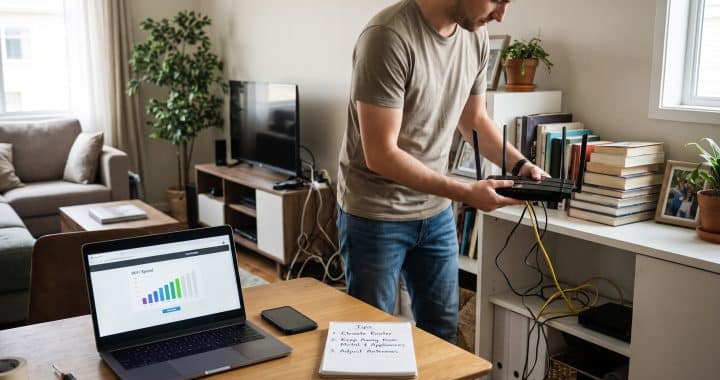
Once it is on, your iPhone backs itself up roughly once a day when three conditions are met: it is plugged into power, the screen is locked, and it is connected to WiFi. That usually means overnight while the phone charges on the nightstand, which is exactly how it should work. If backups keep stalling because your connection drops in the bedroom, these tips to improve your WiFi signal are worth a look.
If your iPhone supports 5G and your carrier allows it, you will also see an option called Back Up Over Cellular. I generally leave that off for customers on limited data plans, but it can be handy if you travel a lot and rarely touch WiFi.
The iCloud Storage Problem Almost Everyone Hits
Every Apple Account comes with 5GB of free iCloud storage. That sounds like a lot until you realize it is shared across iCloud Photos, Mail, iCloud Drive, and your device backups. If you have a few years of photos, 5GB fills up fast, and when it does, your backups silently stop.
You will usually get an alert saying there is not enough storage to complete the backup. People swipe that notification away constantly. I know because I see the “Last successful backup” dates when they come in.
There are two ways to handle it:
- Upgrade to a paid iCloud+ plan. The smallest tier is inexpensive and covers most single users comfortably.
- Trim what gets backed up. Go to Settings, tap your name, tap iCloud, then manage your storage and open your device’s backup. From there, you can switch off apps you do not need saved. Be careful, though: turning off an app there also deletes that app’s existing backup data from iCloud.
My honest advice? If your photos matter to you, pay for the storage. It costs less per month than a coffee, and I have never had a customer regret it.
How to Back Up Your Phone to a Computer
Cloud backups are convenient, but I like customers to also have a local copy on a computer they own. It is faster to restore, it does not depend on your internet speed, and it does not count against your iCloud storage.
Using a Mac
- Connect your iPhone to your Mac with a cable.
- Open a Finder window and select your iPhone in the sidebar. (This requires macOS Catalina, version 10.15, or later. Older Macs use iTunes instead.)
- If prompted, unlock your iPhone and tap Trust This Computer.
- Click the General tab.
- Select the option to back up all of the data on your iPhone to this Mac.
- Check Encrypt local backup and set a password. More on why below.
- Click Back Up Now.
Using a Windows PC
Apple now offers the Apple Devices app for Windows, which you can download for free from the Microsoft Store. It replaced iTunes for device backups on modern Windows machines. If your PC does not have it available, iTunes still works.
- Install and open the Apple Devices app.
- Connect your iPhone with a USB or USB-C cable.
- Unlock the phone and tap Trust when asked.
- Select your iPhone in the sidebar, then open the General section.
- Choose to back up all of the data on your iPhone to this computer.
- Check Encrypt local backup and create a password.
- Click Back Up Now and leave the cable connected until it finishes.
Why I Always Encrypt a Local Phone Backup
This is the step people skip, and it is the one I care about most. An unencrypted local backup leaves out some of your most valuable data. According to Apple’s page on encrypted backups, they can include your saved passwords, WiFi settings, call history, and your Health data. If you have been tracking workouts or medical records for years on an iPhone or Apple Watch, an unencrypted computer backup will not bring that back.
The catch is the password. Write it down somewhere safe, like a password manager, and follow the same rules you would for creating a strong password. If you forget it, Apple cannot recover it for you, and you will not be able to use those older encrypted backups. You can reset the setting and start fresh, but the previous backups become locked.
How to Back Up Your Android Phone with Google
Android is a bit trickier to explain because every manufacturer puts the menus in slightly different spots. A Pixel looks different from a Samsung Galaxy, which looks different from a Motorola. The underlying system, though, is the same: Backup by Google One, which uses the storage attached to your Google Account.
Every Google Account includes 15GB of free storage, shared across Gmail, Google Drive, and Google Photos. Device backups count toward that pool too.
Pixel or Stock Android Phones
- Open the Settings app.
- Tap System, then Backup (some versions list it under Google, then Backup).
- Turn on Backup by Google One. If this is your first time, follow the setup prompts.
- Tap Back up now.
Google notes that the first backup can take up to 24 hours. When the data is saved, you will see “On” listed under each type of data that was included, such as apps, call history, contacts, device settings, and SMS and MMS messages.
Samsung Galaxy Phones
- Open Settings and tap Accounts and backup.
- Under the Google Drive section, tap Back up data.
- Turn on Backup by Google One and tap Back up now.
- To protect your data plan, turn off the option to back up using mobile data so it only runs on WiFi.
Two Android Rules I Wish More People Knew
The first one surprises nearly everyone. Google’s own help page states that your backup data, except for what is in Google Photos, gets erased if you do not use your device for 57 days. So if you put an old phone in a drawer as a “just in case” and plan to restore from it a year later, that backup may be gone. Restore what you need within that window.
The second is about versions. You cannot restore a backup made on a newer version of Android onto a phone running an older version. If you are moving to a different phone, update it first before restoring.
Don’t Forget Google Photos
The device backup and Google Photos are separate settings. To make sure your pictures are protected, open the Google Photos app, tap your profile picture, open Photos settings, and turn on backup. Choose your upload quality while you are there. Original quality uses more storage but keeps the full resolution.
Back Up Your Samsung Phone with Smart Switch
Samsung owners have an extra tool I really like: Smart Switch. It is preinstalled on Galaxy phones, and there is a free desktop version for Windows and Mac.
With the desktop version, you connect your phone by USB, open Smart Switch on your computer, and click Backup. It creates a large local copy of your messages, contacts, call logs, photos, settings, and more. According to Samsung’s Smart Switch guide, Windows 10 users will find those files by default in the Documents folder under Samsung, then SmartSwitch, while Windows 11 stores them inside the AppData folder.
The mobile app can also back up to a microSD card or, on models without a card slot, to a USB storage drive.
A fair warning from experience: Smart Switch is excellent, but it is not a perfect clone of your phone. It does not save every login, every password, or data that only lives in an app’s private storage. That’s why I treat it as a strong second copy next to the Google backup, not a replacement for it.
What Your Phone Backup Quietly Leaves Behind
This section exists because of real tickets I have handled. A standard backup is very good, but it is not everything. Knowing how to back up your phone properly means checking these items yourself.
Messaging and Authenticator Apps
WhatsApp, for example, keeps its chat history in its own backup, stored in iCloud on iPhone or Google Drive on Android. You have to turn it on inside WhatsApp under Settings, then Chats, then Chat backup. Other private messaging apps have their own approaches, so open each one and look for a backup option.
Authenticator apps deserve the same attention. If you use an app for two-factor sign-in codes, losing your phone can lock you out of accounts. Many authenticator apps now offer cloud sync or an export option. Turn it on, and save your recovery codes somewhere safe. Also, be wary of urgent emails claiming your backup or account needs attention; learning how to spot phishing emails keeps scammers from exploiting a lost-phone panic.
Texts, Files, and App Progress
Google’s backup handles Android texts well when you use Google Messages. With a different texting app, picture and video messages may not come back the way you expect.
Files sitting in your Downloads folder, offline playlists, and podcasts usually are not part of a device backup either. Music from streaming services can be downloaded again, but your own files need their own home, such as iCloud Drive or Google Drive.
Finally, think about paid apps and games. Your purchases come back, but some games and apps store progress only on the device. Check whether the app has its own account sign-in or cloud save.
How to Check That Your Phone Backup Actually Worked
Turning backups on is half the job. Checking them is the other half. The date of your last backup tells the real story, so look at it once a month.
To check an iPhone, go to Settings, tap your name, tap iCloud, then iCloud Backup. Under Back Up Now, you will see the date and time of the last successful backup. A date from weeks ago means something is wrong, usually storage or WiFi.
Android owners can open Settings, then System or Google, then Backup. That screen shows when the last backup completed and which categories were included.
Computer backups are easy to verify too. In Finder or the Apple Devices app, look for the latest backup date on the General tab, or open Manage Backups to see the list of saved backups. Smart Switch users can simply check the date on the backup folder.
Before a big event, like a trade-in, a repair appointment, or a factory reset, run a manual backup the night before and confirm the timestamp in the morning. I make every customer do this before I touch a reset. No exceptions.
The Routine I Recommend to Back Up Your Phone
IT professionals have relied on something called the 3-2-1 rule for years. The idea is simple: keep three copies of your data, on two different types of storage, with one copy kept offsite. Backblaze, a cloud backup company, describes it as a solid starting point for most people, even if it is not the final word.
Here is how that translates to a phone. The first copy is the data on your phone itself. Your cloud backup, through iCloud or Google One, is the second and acts as your offsite copy. The third can be a local backup on your computer, a Smart Switch backup, or your photos exported to an external drive.
Most households do well with this rhythm:
- Leave automatic cloud backups on all the time.
- Do a computer backup once a month, or before any big change.
- Export your photo library to an external drive a few times a year.
- Check your backup dates whenever you change your charging routine, travel, or get a storage warning.
It sounds like a lot written out. In practice, it is about fifteen minutes a month, which is a small price for knowing how to back up your phone and actually doing it.
Common Mistakes When People Back Up Their Phone
After enough years behind a support counter, patterns become obvious. These are the mistakes that turn a routine fix into a sad conversation:
- Ignoring the “storage full” notification. Backups stop, and nobody notices until they need one.
- Assuming sync equals backup. Deleting photos to “free up space” when they are synced deletes them from the cloud too.
- Forgetting the encryption password. The backup exists, but nobody can open it.
- Never charging on WiFi. When an iPhone is never plugged in while locked and on WiFi, automatic iCloud backups may rarely run.
- Trading in a phone before confirming the restore. Keep the old phone until the new one has everything you need.
- Leaving an old Android in a drawer too long. That 57-day rule catches people off guard.
So here is the one thing to take from this guide on how to back up your phone: check your last backup date today. A recent date means you are in good shape. An old one means you now know exactly how to fix it.
FAQ: How to Back Up Your Phone
How often should I back up my phone?
Automatic daily cloud backups cover most people. I also recommend a manual computer backup at least once a month and always before updates, resets, or repairs. Lenovo’s guide to computer backups gives the same monthly baseline.
Does iCloud back up my photos?
When iCloud Photos is turned on, your photos sync to iCloud separately and are not included in the device backup. With iCloud Photos off, they are included in iCloud Backup. Apple explains the details in its iCloud Backup support article.
How long does it take to back up a phone?
It depends on how much data you have and your connection speed. A first iCloud backup can take an hour or longer, and Google says a first Android backup through Google One can take up to 24 hours. Later backups are faster because only changes are saved.
Can I back up an iPhone without iCloud?
Yes. You can back up to a Mac with Finder or to a Windows PC with the Apple Devices app. Apple walks through it in its support articles for Mac users and Windows users.
Can I restore an Android backup to an iPhone, or the other way around?
Not directly. Device backups only restore to the same platform. To switch, use Apple’s Move to iOS app when going to iPhone, or the transfer tools during Android setup when going to Android, including Samsung’s Smart Switch for Galaxy phones.
What happens if I stop using my Android phone?
Google deletes your device backup, except Google Photos content, after 57 days of no use. It is covered on Google’s Android backup help page.
Is my phone backup secure?
Cloud backups are encrypted by Apple and Google. For even stronger protection on iPhone, you can turn on Advanced Data Protection for end-to-end encryption. When backing up to a computer, always check Encrypt local backup, as Apple describes in its page on encrypted backups.
References
- Apple Support. iCloud Backup for iPhone and iPad.
- Apple Support. iPhone User Guide: Backups.
- Apple Support. Backing up an iPhone, iPad, or iPod touch with Windows.
- Apple Support. Backing up an iPhone or iPad with a Mac.
- Apple Support. About encrypted backups on iPhone, iPad, or iPod touch.
- Android Police. Android device backup guide.
- Google Help. Back up or restore data on your Android device.
- Samsung Support. Using Google One backups on Galaxy devices.
- Samsung US. Transfer data to a new device using Smart Switch for Windows or Mac.
- How-To Geek. Backing up and restoring Android using Google One.
- Backblaze. The 3-2-1 Backup Strategy.
- Asurion. Tech tips on mobile device backups.
- Lenovo. Guide to computer backups for mobile devices.